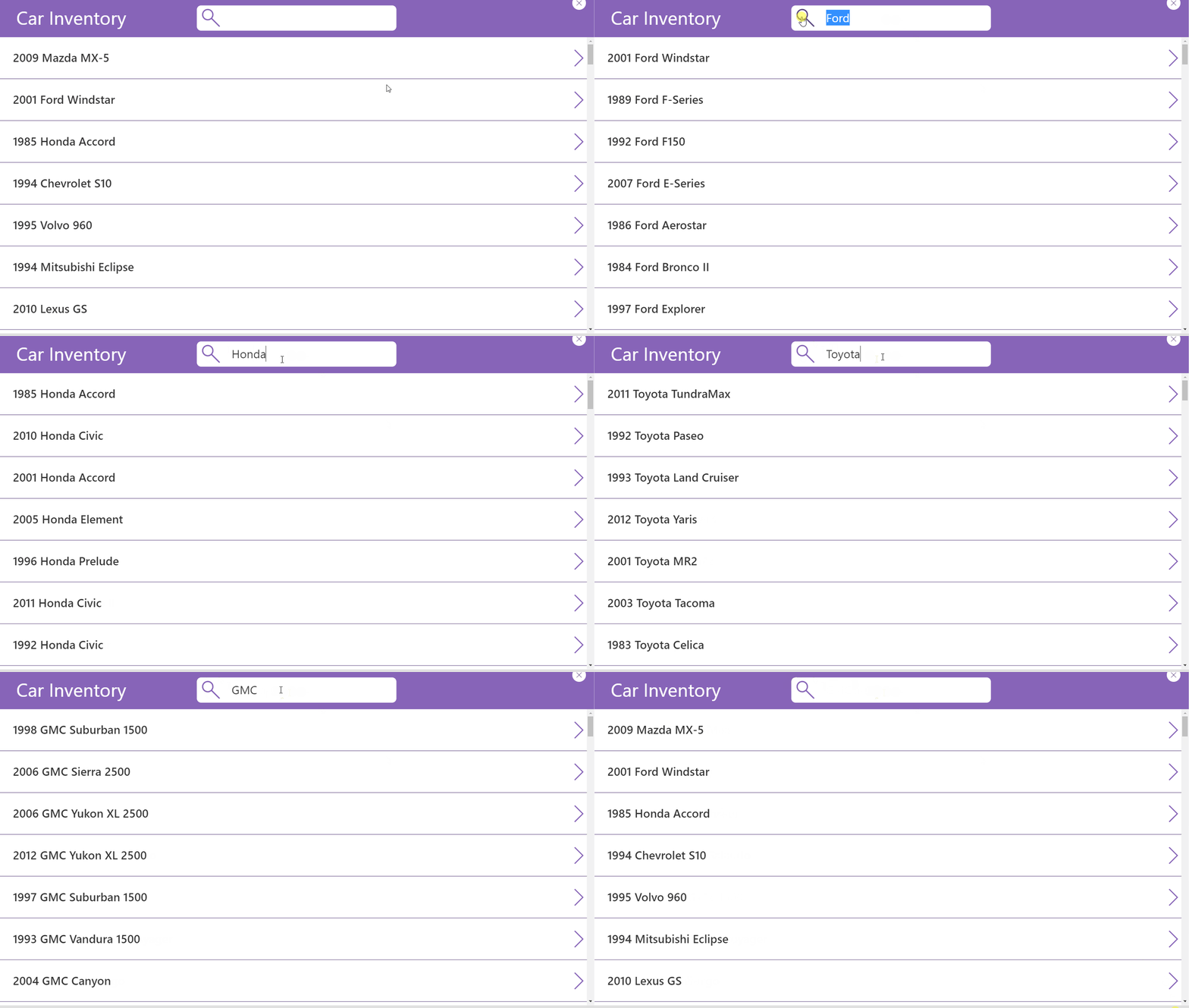
The Car Inventory Search app is used by salespeople at a car dealership to determine which cars are currently in inventory.
Make The Car Inventory Search App
Create a new SharePoint list called Car Sales Inventory with the following columns:
- Year (number)
- Make (single-line text)
- Model (single-line text)
Include this data in the list:
| Year | Make | Model |
| 2000 | Honda | Accord |
| 1998 | Oldsmobile | Aurora |
| 1984 | Maserati | Quattroporte |
| 2011 | Chevrolet | Malibu |
| 2006 | Mercedes-Benz | G-Class |
| 1985 | Ford | Laser |
| 2009 | Kia | Spectra |
| 1996 | Dodge | Ram Van 3500 |
| 1985 | Buick | Century |
| … | … | … |
| 2009 | Mercedes-Benz | S-Class |
(3,000 rows)
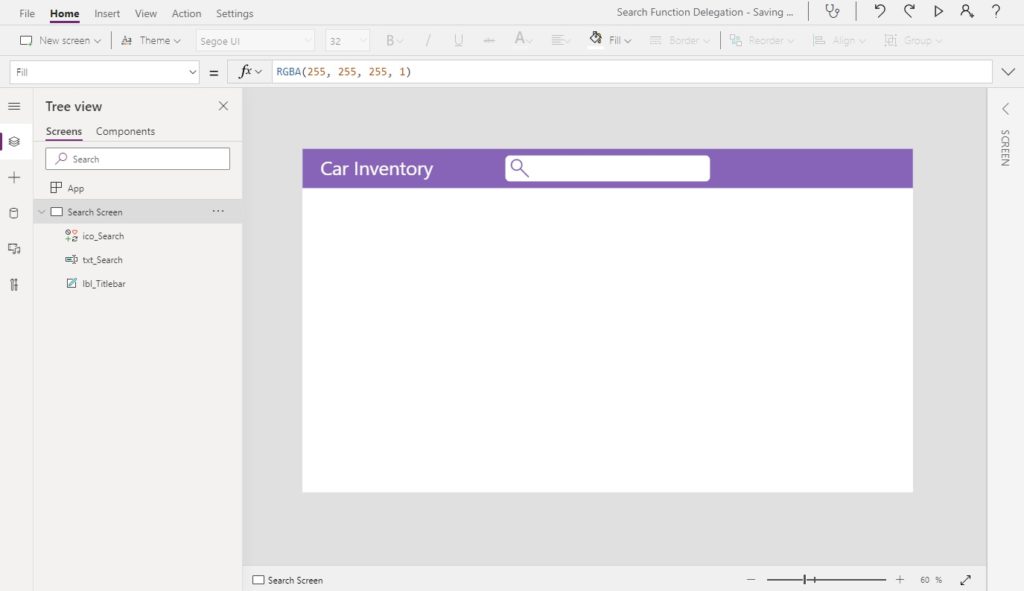
Start a new app from blank in Power Apps Studio. Make a title bar with a text input at the top where the user can type in keywords to perform a search.
Add the Car Sales Inventory SharePoint list as a datasource then insert a gallery onto the screen…
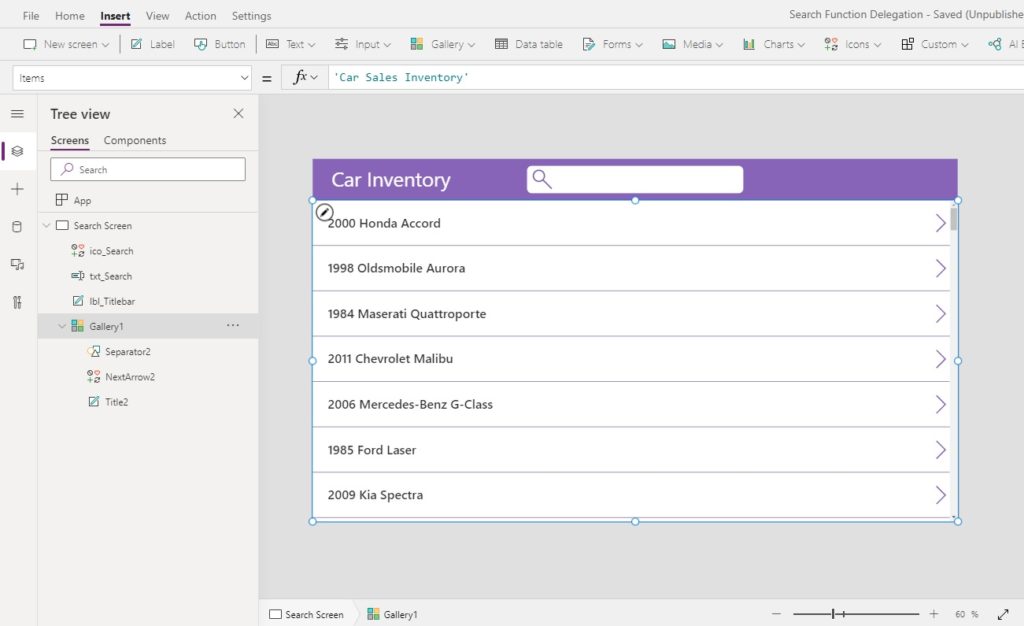
…and use this code in the Items property.
'Car Sales Inventory'Code language: JavaScript (javascript)
Change the layout of the gallery to Title so there is only one label on each row. Write this code in the text property of the label. Now the gallery will display the every car’s year, make and model.
Concatenate(
     Text(
         ThisItem.Year,
         "0000"
     ),
     " ",
     ThisItem.Make,
     " ",
     ThisItem.Model
 )Code language: JavaScript (javascript)
Write A Search Function With A Delegation Warning
When a user types their search terms into the search bar the gallery below updates to show only matching results.
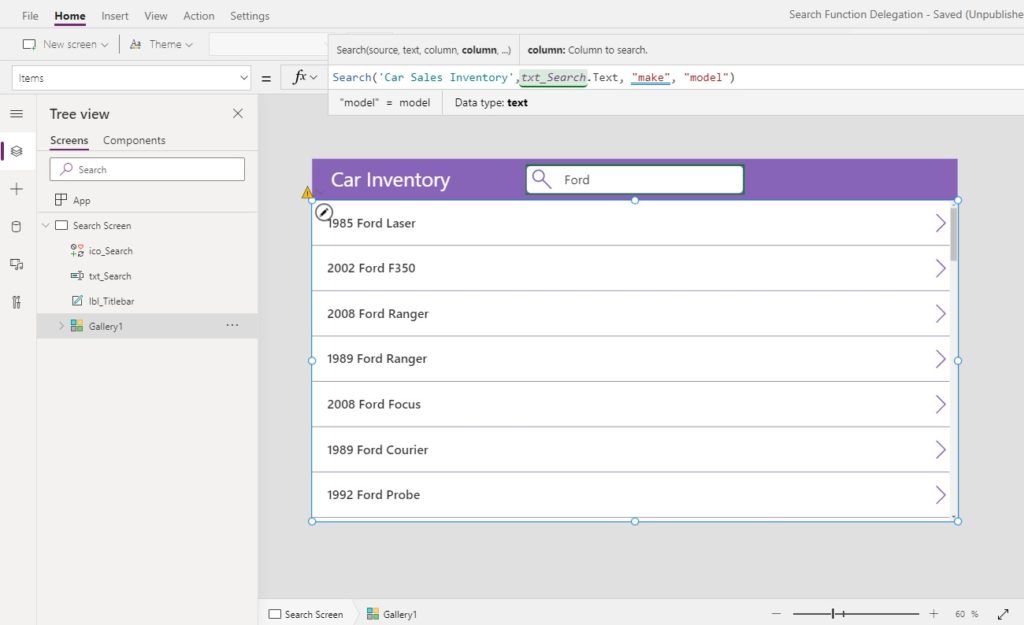
Update the code in the Items property of the gallery to include the Search function. The make and model columns can be searched because they are text but the year column cannot be because it is a number.
Search('Car Sales Inventory', txt_Search.Text, "Make", "Model")Code language: JavaScript (javascript)
The search function will produce a delegation warning because it is not included in the list of delegable functions for SharePoint. This means that by default only the first 500 rows of the Car Sales Inventory will be searched and returned or 2,000 rows if you increased the limit in advanced settings.
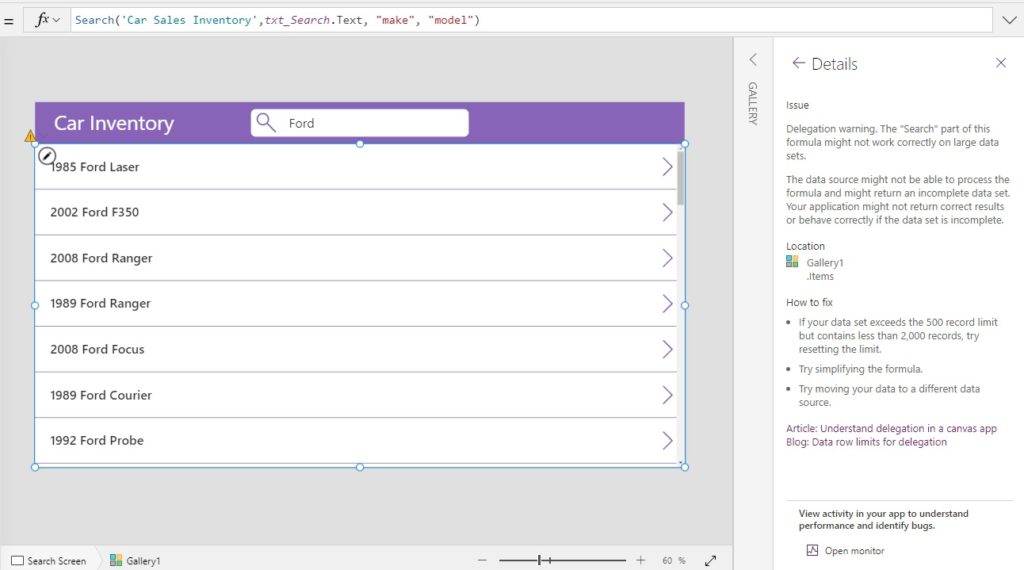
Search Function Delegation Warning Workarounds
There are 4 delegation workarounds for the Search Function:
1. Power Automate Delegation Workaround For The Search Function
The Power Apps search function does not support delegation. But we can build a Power Automate flow to perform a search and return the results to Power Apps. Using the SharePoint – Get Items action we can retrieve any records with a matching substring. Then we send the search results back to Power Apps and covert it to a collection with the ParseJSON function. The best part is no premium licensing is required.
Check out the full tutorial for this Search function delegation workaround here.
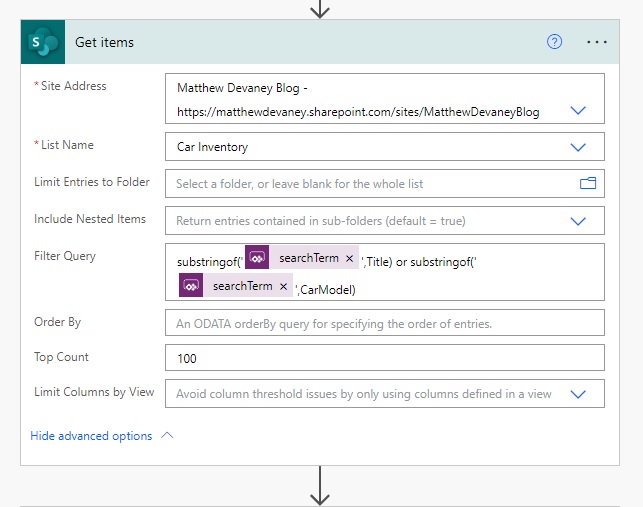
2. StartsWith Delegation Workaround For The Search Function
While the Search function cannot be delegated in SharePoint the StartsWith function can. This means we can make a search bar that looks at the start of every word and shows all results in the gallery. The trade-off is any words found in the middle of a text column will not be returned when searching.
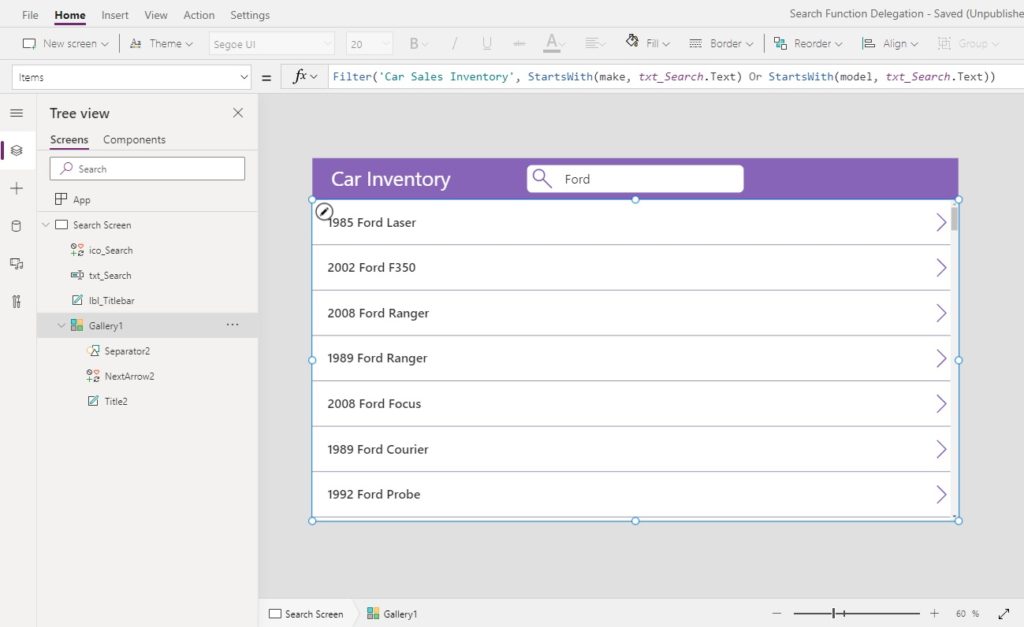
To use the StartsWith delegation workaround for searching use this code in the Items property of the gallery.
Filter(
    'Car Sales Inventory',
    StartsWith(make, txt_Search.Text)
    Or StartsWith(model, txt_Search.Text)
) Code language: JavaScript (javascript)
3. Search + Filter Delegation Workaround For The Search Function
Another workaround is to pre-filter the results on some criteria that will return less than 2,000 rows and then perform the search on that smaller chunk of data. The car inventory has 3,000 rows for cars which are located in 5 cities. We know that any city selected will return less that 2,000 rows so its OK to use this workaround.
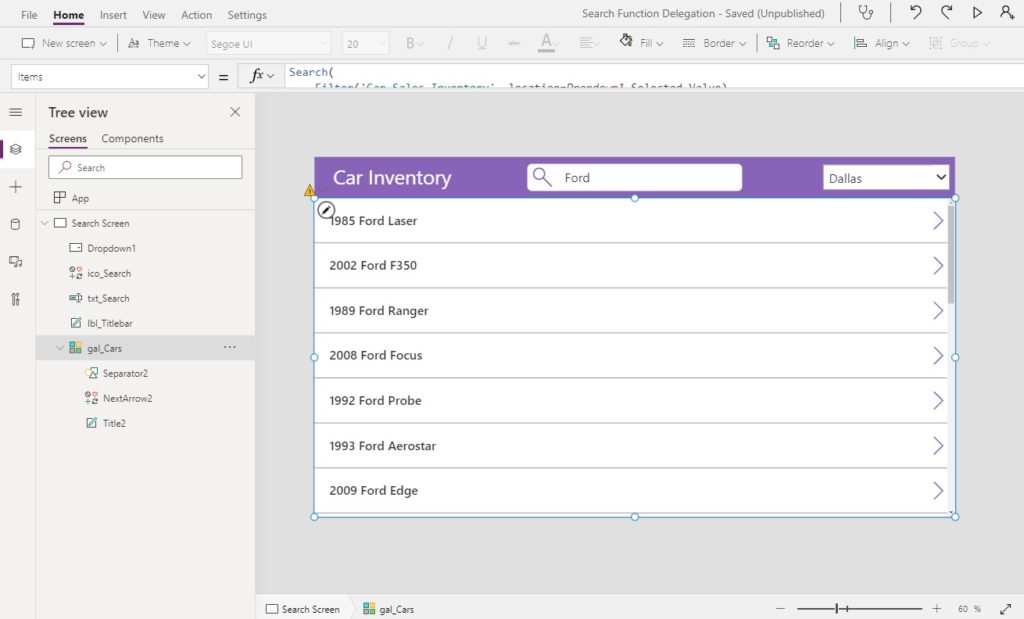
Place a dropdown control in the top-right corner of the app and use this code in the Items property to display the city names.
["Austin", "Dallas", "Fort Worth", "Houston", "San Antonio"]Code language: JSON / JSON with Comments (json)
Then write this code in the Items property of the gallery. The delegation warning will still appear but you can safely ignore it.
Search(
    Filter('Car Sales Inventory', location=Dropdown1.Selected.Value),
    txt_Search.Text,
    "Make",
    "Model"
)Code language: JavaScript (javascript)
4. Dataverse IN Operator Delegation Workaround For Search Function
If we require full search capabilities the final workaround is to change the datasource from SharePoint to Dataverse For Teams (which also does not require premium licensing). The IN operator can be delegated in Dataverse and can check the contents of a column for a matching text string. This feature is still in Preview so we must enable it by going to File > Advanced Settings > Upcoming Features > Preview.
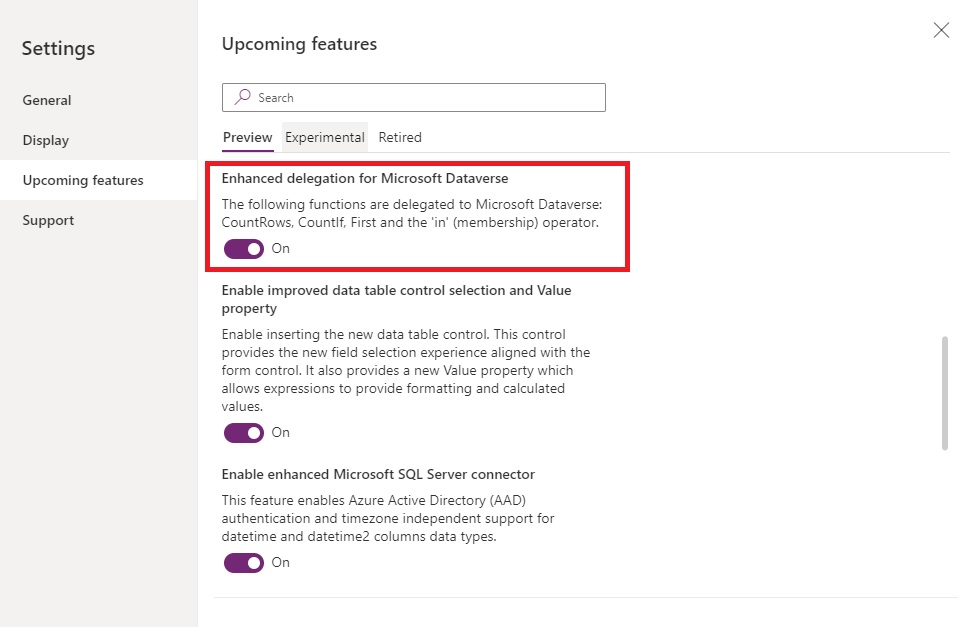
After we change the datasource to Dataverse For Teams and upload all of our Car Inventory data…
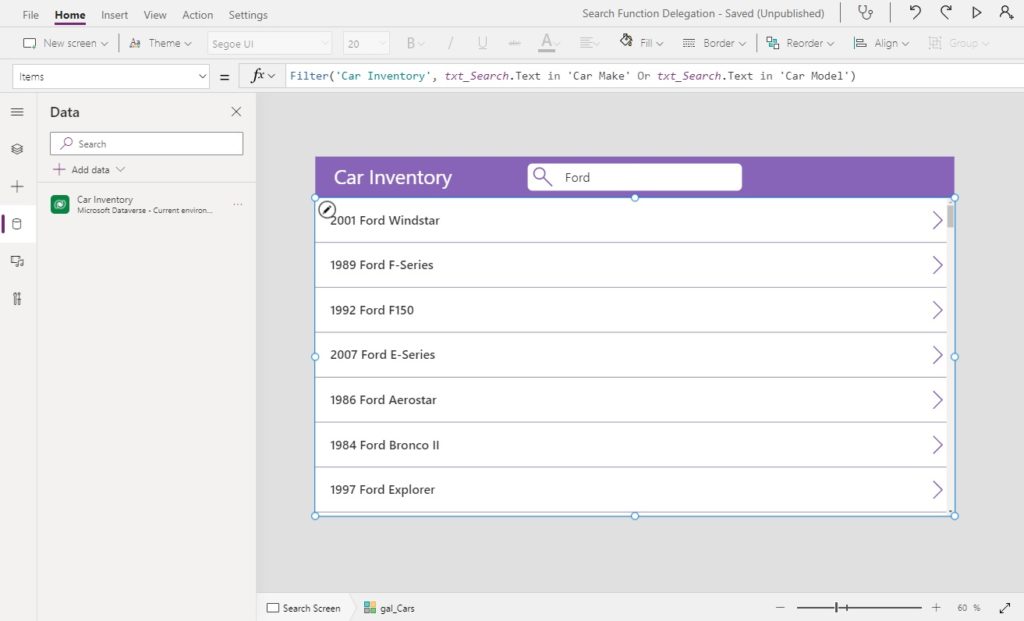
…we can write a FILTER function like this in the Items property of the gallery to perform a search.
Filter('Car Inventory', txt_Search.Text in Make Or txt_Search.Text in Model)
Comments